Google Sheet Template for agile Scrum projects with reporting automations
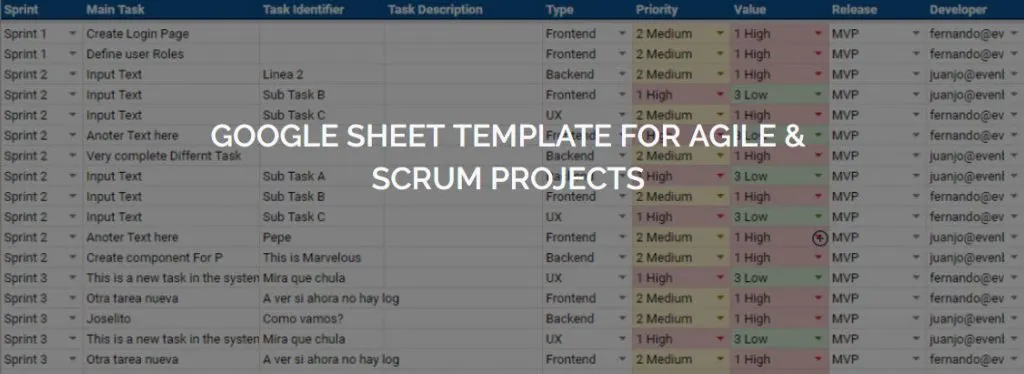
Evenbytes’ Google Sheet template for Scrum projects is a free spreadsheet with automations to manage sprints, tasks and reports for small and medium agile projects, without paying for any extra tool.
Why are we sharing this template?
After evaluating several options, we didn’t find a solution that matched our simple needs for agile project management: they were either too costly or too complex for our requirements. So we created a Google Sheet with some automations to track our activities, and we discovered it was really helpful.
We believe this simple solution can help many people looking for an easy alternative for small and medium Scrum projects. We’d love your honest feedback: get in touch and we’ll include changes in the template if needed.
What’s included in the template?
- Highly customisable: add your sprint details (names, dates…) and your own categories for priority, release, status, etc.
- Auto-numbered task ID.
- Automatic reports built in.
- Automatic system columns: created by and created date; last modified by and last modified date.
- Customisable email notifications: your own email templates and when they are sent (when a task reaches a given status or is assigned to someone).
- Long tasks described in Google Docs.
How do the automations work?
Most automations use advanced Google Sheets features such as queries and formulas; a few require Google Apps Script. If you use the template, you’ll get a copy of the Apps Script code in your copy of the sheet, so you can improve it yourself.
System columns
Created date, created by, last modified date, last modified by and completed are filled in automatically by a simple Google Apps Script that uses the onEdit event. This is how they are completed every time the sheet changes:
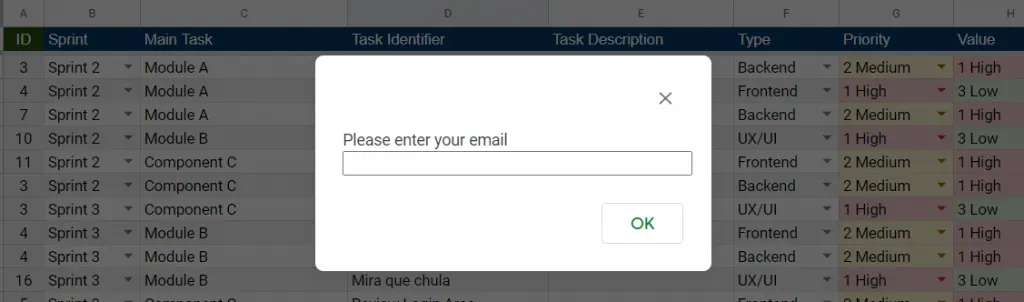
The first time someone edits any cell, the sheet asks for their email. It is used to:
- Send email notifications.
- Log actions in the Audit Log sheet.
- Track changes in the system columns (created by, last modified by).
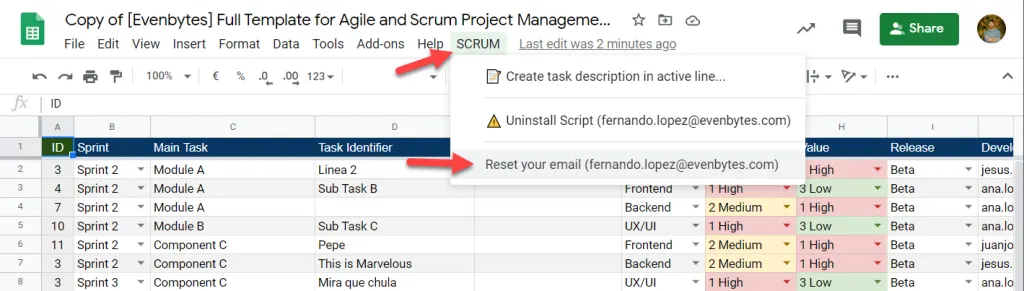
This value is stored in the Google Apps Script properties service. In the latest version of the template, the SCRUM menu includes an option to change it if it was entered incorrectly the first time.
Reporting
The reporting module uses formulas only, with no Apps Script. For it to work, set the sprint dates correctly in the config sheet; otherwise the formulas will have no data to build the charts. Once everything is set up, the charts are generated automatically in the Query Report sheet:
Task description document
A single cell is often not enough to describe a task. To solve this, a script creates a Google Doc from a template you define and links it in the task’s row:
Configuration options for task description templates
You can create your own Google Doc to describe tasks however you like. In the config sheet, change these parameters:
- Task folder ID: the ID of the Google Drive folder where the documents will be created. If empty, they are created in the same folder as the sheet. It’s the last part of the folder URL, e.g.
194iAKdH6iR3RAU5rbTRX2ZCL7EjchRNFkDJ1Fr6Er6cinhttps://drive.google.com/drive/folders/194iAKdH6iR3RAU5rbTRX2ZCL7EjchRNFkDJ1Fr6Er6c. - Template document: the ID of the document that will be copied each time you want to describe a task in detail.
How to start using the template
- Request your copy of the template.
- You’ll receive an email with the link. Click Copy Scrum Google Sheet Template (you can make as many copies as you like).
- Review and adjust the config sheet to your needs.
- Activate the script from the SCRUM menu, following the steps in the video. You need to do this for each copy of the file.
Need something more complete than a spreadsheet? Evenbytes builds custom applications and automates processes with Google Workspace. Tell us about your project.